Moving items from the inventory
pyrobloxbot offers method to open and close the normal Roblox inventory, through:
pyrobloxbot.open_inventory()/pyrobloxbot.close_inventory()/pyrobloxbot.toggle_inventory()
However, just opening the inventory isn’t very useful in and of itself.
Usually, the reason you’ll want to open the inventory is because there are items in there that you want to move to the hotbar, or vice-versa.
pyrobloxbot doesn’t provide a method to do this, because, as you’ll soon see, the process is a bit more complicated than you might expect, and the specifics vary from game to game.
Understanding how moving items works
The first step is actually accessing the inventory.
Usually, using the pyrobloxbot.open_inventory() and pyrobloxbot.close_inventory() functions is easier, but you might prefer using pyrobloxbot.toggle_inventory() instead.
Your inventory might then look something like this:
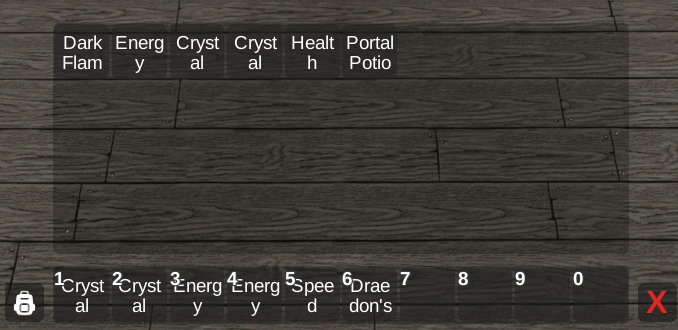
Now, how do we actually move items between the hotbar and inventory using our keyboard?
For this, we actually need the ui navigation mode. The sequence of steps needed are:
Open the inventory.
Using the ui navigation mode, select the item you want to move, either on the hotbar or the inventory.
Hold down enter.
a) If you’re moving an item from the inventory to the hotbar, select the hotbar slot you want to move to and release enter.
b) If you’re moving an item from the hotbar to the inventory, then you can either:
- Select an item already in the inventory and release enter, which will swap both items.
- Select the whole inventory (see the example below) and release enter (on some games you might also have to navigate to the right before releasing enter) which will put the item at the end of the inventory.
The whole sequence will look something like this:
Moving items with pyrobloxbot
So, now how do we code this up?
The key is that we’ll rely on the pyrobloxbot.key_down() and pyrobloxbot.key_up() functions to hold the enter key while navigating the ui.
An example of moving an item from the hotbar to the inventory might then look something like this:
import pyrobloxbot as bot

bot.open_inventory() # First of all, our inventory has to be open

# You also need to explicitly enable ui navigation mode
# To avoid it being reset mid moving operation
bot.toggle_ui_navigation()

# This is just an example of a sequence you might use to select a hotbar slot
# In reality, you'll have to figure out a sequence that works in your game
# You can see the UI interactions usage guide to learn more about this
bot.ui_navigate("right", "right", "left")

bot.key_down("enter")

bot.ui_navigate("up", "right") # Here we select the inventory and navigate right
                               # (assuming our game requires navigating right)

bot.key_up("enter")

bot.close_inventory() # After everything is done, we can close the inventory
bot.toggle_ui_navigation() # And disable the ui navigation mode
Note
Important things to note are:
You’ll have to be careful and accurately track where each item in your inventory and hotbar is to avoid errors in your bot.
Manually enabling and disabling the ui navigation mode is required here. This is explained further in the UI interaction guide.