Joining games
pyrobloxbot also has methods to join Roblox games, just like you would on the regular Roblox app.
This is useful to make certain kinds of bots where you need to server hop, but also can just be used to make your bot more robust.
Depending on the game and whether or not you have a private server, you might not be able to account for 100% of things that could happen to you while you’re afk.
So, if you plan on having your bot run for really long periods of time unattended, a good practice would be to rejoin whatever game you are every once in a while, to undo anything unpredictable that might have happened to your character.
Mostly though, these methods are used for server hopping.
Tip
You can join a Roblox game (even if its the same game) while already being inside a game.
You can find an example of a bot that uses server hopping in the usage examples.
pyrobloxbot allows you to:
Join a game on random server.
Join a specific private server.
Join a specific server.
Join a specific user’s server.
Note
Keep in mind you’re only able to do any of these things if you’d normally be able to do them from the Roblox app.
Joining random servers
Joining a random server is easy. You only need to get the game id, which is easy to do just by looking at a url:
A game url will look like https://www.roblox.com/games/155615604/Prison-Life, and 155615604 is the game id. You can then call pyrobloxbot.join_game() with that id as the argument.
Joining users
Joining a user’s server is also easy. You only need to get the user id.
A user url will look like https://www.roblox.com/users/694465738/profile, and 694465738 is the user id. You can then call pyrobloxbot.join_user() with that id as the argument.
Joining private servers
Joining a private server is done through pyrobloxbot.join_private_server(), and requires two pieces of information:
The game id (we’ve seen how to get that already)
The private server’s link code.
Obtaining the latter is a bit let obvious, but still not difficult.
You’re going to need to get your private server’s invite link, which will look something like https://www.roblox.com/share?code=864059867507234896ed98bd1b78a8dc&type=Server.
You’ll then paste that url in your browser, and wait a few seconds until you’re redirected to a new url that looks like https://www.roblox.com/games/90906407195271/Racket-Rivals?privateServerLinkCode=1020499390872690887970171.
There’s your private server link code 1020499390872690887970171!
Note
If the private server’s invite link gets regenerated, then the private server link code will also change.
Joining a specific server
Joining a specific server is done through pyrobloxbot.join_server(), and you also need two pieces of information:
The game id.
The server’s job id.
A job id will be a random looking string of numbers, letters and underscores, like:
D01F4F55_045B_4727_9A19_E694027D3F8A_69AA65738_2657
This is what we’ll now learn how to obtain, and there are a few ways to do it.
Note
Server job ids are volatile. Whenever a server shuts down, it’s job id will cease to exist.
Using find_servers()
pyrobloxbot actually provides a method for searching for servers, similarly to what you’re able to do in the “servers” tab of a game in the Roblox app.
You can use pyrobloxbot.find_servers() to look for server ids for a given game, and also filter the results based on a few parameters. See it’s api reference to see all the parameters you can use.
The one you’ll probably find most useful is the descending parameter though. When set to False, it’ll return the emptiest servers, which is often useful when making bots.
There’s also limit, to set how many servers to search for, and ignore_full_servers, to discard full servers.
Checking if the game makes it public
If you’re lucky, the game you’re trying to bot will actually show you the job id for the server you’re in somewhere.
For example, if you look around you might find something like this:
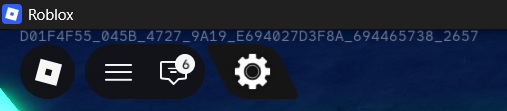
A server’s job id shown in game (Racket Rivals)
Another common place to look is the developer console, which you can open with the F9 key.
If you develop the game
This probably won’t be the case, but if you’re able to change the code of the game you want to join, you can print game.JobId to the console, and then check it by pressing F9.